
Updated September 16, 2026: Google is now auto-generating AI version summaries when you publish a container, an auto opt-in with no admin kill switch.
Google Tag Manager is receiving its most significant update in years. First revealed to partners ahead of the official Google Marketing Live keynote on May 20, 2026, GTM containers are effectively becoming Google Tags. This merges two product lines that have always been closely related under the hood.
While Google did not dedicate main stage time to the GTM update during the keynote itself, they quietly published the official announcement page, confirming the earlier leaks. The update introduces centralized Google Tag settings, codeless visual tagging, and a dual-ID deployment model.
Here is a full breakdown of what is changing, what is not, and how it affects your day-to-day GTM workflow.
Official Confirmation from Google Marketing Live
Although marketers expected a major reveal during the Google Marketing Live keynote, the announcement was instead made via a dedicated feature page. Google's communication confirms the early details shared by tagging experts like Simo Ahava, while also bringing a few unexpected technical changes into focus.
While full optimization features will roll out incrementally throughout the year, some features like visual tagging are already live in beta. Until you receive the container update, here is a look at the official visual tagging demo they provided:
How GTM and Google Tag Are Merging
At its core, this update merges the Google Tag and GTM development tracks. Until now, GTM development has largely stagnated while Google Tag received steady improvements. By unifying the two, Google can push updates to GTM without conflicting with their internal Google Tag priorities.
The headline change: GTM containers will become Google Tags. This is an opt-in upgrade, not an automatic migration.
The New Deployment Snippet and gtm init Trigger
As part of this unification, new deployment snippets will be standardized and will no longer contain the legacy gtag config command.
Moving forward, Google recommends configuring initialization behavior using a new gtm init trigger. For sites that still require legacy configurations, you can instruct this init trigger to wait for the legacy config command before firing dependent tags.
What the GTM Update Does NOT Change
Before diving into the details, here are three critical clarifications regarding the transition:
- GTM will NOT start collecting data automatically. Upgrading your container does not cause it to send hits to GA4, Google Ads, or Floodlight without your explicit configuration.
- You do NOT have to use Google products with GTM. Non-Google tags and custom implementations remain fully supported.
- GTM will keep working as before. Nothing changes unless you opt into the upgrade.
What Are GTM Destinations?
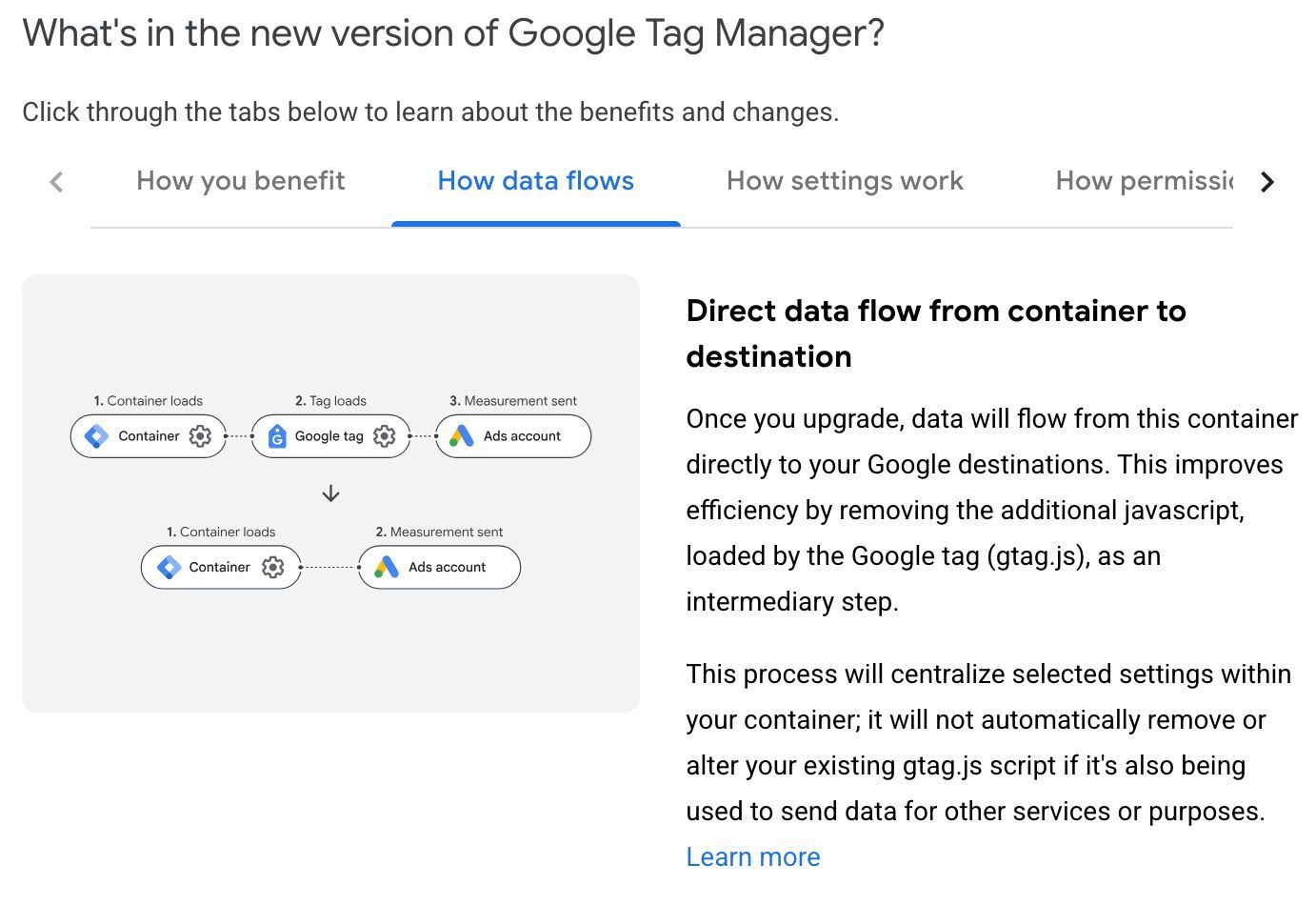
The most impactful technical change, officially referred to by Google as "Optimized configuration," is the introduction of Destinations. When you upgrade a GTM container, any existing Google Tags inside it can be migrated to Destinations of the container itself.
Why This Matters for Performance
Today, every Google Tag in your container loads its own separate gtag.js file. If you have GA4, Google Ads, and Floodlight tags, that is three additional library loads on top of the GTM container script.
After the upgrade, Destinations are handled entirely through the single container JavaScript file. No additional gtag.js loads per destination. This translates directly into:
- Less bandwidth consumption for your users
- Fewer browser resources consumed during page load
- Faster overall page performance
For sites running multiple Google products through GTM, this is a meaningful improvement to page speed.
Centralized Google Tag Settings
Destinations also introduce a centralized set of Google Tag Settings within the GTM container. These settings apply to all Destinations simultaneously, giving you a single source of truth for configuration like consent settings, user data redaction, and cross-domain measurement.
You can still override individual settings per Destination in the product-specific tags themselves. But the centralized default eliminates the inconsistency that creeps in when you manage identical settings across five different Google Tags.
Simplified Team Access
A major administrative benefit of Destinations is streamlined permissions. When you link your container to Google destination accounts during the optimization process, it automatically establishes account links and grants "Read" access by default. This makes the container directly visible within the interface of your other connected Google products without manual user management.
Keeping the Legacy Flow
If you prefer the current architecture with separate settings and individual library loads, you can continue using legacy Google Tags in GTM. The old flow is not being removed.
GTM UI Changes and Visual Tagging
To prepare for these features, Google is currently rolling out a refreshed GTM interface. As noted in an excellent UI breakdown by tracking expert Simo Ahava, the interface changes are heavily tailored toward simplifying the platform for beginners.
The New Overview Dashboard
Historically, the Overview page in GTM was a cluttered screen most practitioners ignored. The new UI condenses the workspace activity into a much cleaner, single table.
At the top, you can quickly scan modified, added, and deleted entities. It also features a new visualization card showing your current Google Tags and their destinations, giving you a clear map of your setup once the full GTM/Google Tag integration is live.
The Missing Workspace Switcher (July Update)
As part of the Overview dashboard redesign, Google has intentionally hidden the workspace switcher from the top-left navigation for any container that only has one active workspace. If your workspace dropdown has disappeared, it can be permanently restored via User Settings or accessed through a hidden menu under the "Pending Changes" section. For step-by-step instructions on how to restore it, read our dedicated guide on fixing the new GTM UI changes.
Collapsible Navigation
The left-hand side menu is now collapsible. By default, core features like Triggers and Variables are hidden behind a "Show more" toggle, leaving only "Overview" and "Tags" immediately visible.
This is clearly aimed at preventing new users from feeling overwhelmed. Fortunately, your selection persists. If you are a power user and click "Show more," the menu remains expanded for future sessions.
Codeless Visual Tagging (Event Builder)
Google is also introducing a visual event builder that lets you walk through a conversion flow on your actual website. A WYSIWYG (what you see is what you get) overlay opens on your site, allowing you to click elements (like a transaction ID or conversion value) and automatically generate tags and variables based on those CSS selectors.
Currently, this is available in beta for Google Ads purchase conversions.
If you want to see exactly how this builder works in practice, Julius Fedorovicius from Analytics Mania recently published an excellent, step-by-step video walkthrough of the new interface:
A warning on Visual Tagging: While the slick interface lowers the barrier to entry, relying on CSS selectors for revenue-critical conversions is dangerous. As both Ahava and Fedorovicius note in their reviews, dynamic receipt pages and changing CSS layouts will inevitably break these setups. For critical data like purchases, we strongly recommend working with developers to push data to the dataLayer rather than scraping the page visually.
AI-Generated Version Summaries
The visual builder is one piece of a broader AI push into GTM. Google has since added AI-generated version summaries to the publish flow: submit workspace changes and an AI model writes the version name and description for you. Useful for teams that leave version logs blank, but it ships as an auto opt-in with no account-level kill switch, which matters for enterprises feeding container logic into Google's models. We cover the tradeoffs in GTM's AI version summaries and the enterprise privacy risk.
How to Preview, Test, and Roll Back the GTM Upgrade
Google is being careful with this rollout. Nothing happens automatically. For each container, you will be prompted to upgrade and can:
- Preview the upgraded container before publishing
- Test in a dedicated workspace
- Roll back if anything breaks
This also applies to the new centralized Settings model. You can experiment without risk to your production tagging.
What This Means for Your Workflow
If you manage GTM containers professionally, here is the practical impact:
Short term: Nothing changes unless you choose to upgrade. Your existing containers, tags, triggers, and variables continue working identically. You will notice the new streamlined UI, but the underlying mechanics remain the same.
Medium term: Upgrading gives you performance benefits (fewer library loads) and configuration consistency (centralized settings). The tradeoff is learning the new Destinations model and adjusting to UI changes.
Long term: Since Google is merging development efforts, expect GTM to receive faster and more frequent updates going forward. Features that previously only landed in Google Tag will now flow into GTM as well.
GTM Container ID vs Google Tag Product ID
One detail to note is that all future Google Tags will be deployed using the GTM container snippet. Each tag will receive both a GTM container ID and a product ID (like G-XXXXXX or AW-XXXXXX).
How the container behaves depends on which ID is used in the snippet:
- Deployed with the GTM container ID: Functions as a fully capable GTM container with access to all tag, trigger, and variable features.
- Deployed with the product ID: Limited to deploying Google's tags only.
(Update July 9, 2026: Google released a minor patch strictly enforcing this rule. Previously, loading a container via unsupported custom paths like /gtag/js could accidentally force a GTM-XXXX container into a restricted state. Moving forward, the ID in the snippet strictly dictates functionality regardless of the installation path used.)
This distinction matters for governance. In organizations where there are concerns about GTM misuse, deploying with the product ID effectively locks the container down to Google-only functionality. For most practitioners who want full flexibility, deploying with the GTM container ID is the obvious choice.
The key takeaway: Auditing which ID is used in the container snippet becomes an important step when working with the new setup. If you inherit a site and see a G-XXXXXX ID in the snippet rather than a GTM-XXXXXX ID, you will know the container is intentionally restricted.
Should You Upgrade Your GTM Container Immediately?
For most teams, the smart move is to wait for the dust to settle. Let early adopters surface edge cases, then upgrade a low-risk container first to test the new flow. Once you are comfortable with how Destinations and centralized settings behave, roll it out across your remaining properties.
While you wait, make sure your GTM toolkit is up to date. We maintain a list of the 12 best Google Tag Manager browser extensions that are fully functional in 2026, including tools for debugging the dataLayer, copying tags between containers, and validating server-side setups.
If your containers rely heavily on multiple Google Tags with unique per-tag settings, take extra care during migration to verify that the centralized defaults do not override individual configurations.
From Tagging to Analysis
Getting your GTM setup right is only half the workflow. Once your tags are firing cleanly through the new Destinations model, that data lands in Google Analytics 4 where you need to actually verify what is being collected.
After upgrading a container, use GA4 Live Debugger to confirm that the new Destinations are producing the same network payloads as your legacy Google Tags. The extension shows you every hit leaving the browser in a structured feed, so you can spot missing parameters or unexpected duplicates immediately after publishing a new container version.
If you manage GTM implementations, you are constantly jumping into GA4 to confirm events are flowing and validate conversion values. The free GA4 Optimizer extension adds features built for exactly that workflow, including an integrated Data Dictionary, advanced table filtering by metric thresholds, annotations in Explorations so you can correlate data shifts with container publishes, and bulk copy/paste of custom definitions across properties.
Frequently Asked Questions
Will Google Tag Manager start collecting data automatically after the update?
No. The upgrade does not cause GTM to automatically send data to GA4, Google Ads, or Floodlight. You still have full control over which tags fire and when. The change is structural, not behavioral.
Do I have to upgrade my GTM container to a Google Tag?
No. The upgrade is entirely opt-in. Your existing GTM containers will continue to work exactly as they do today. You can preview, test, and roll back the upgrade at any time.
What are Destinations in the new GTM update?
Destinations replace the legacy Google Tags inside your container. Instead of each Google Tag loading its own separate gtag.js file, Destinations are handled through the single container JavaScript file. This reduces bandwidth usage and improves page performance.
What is the difference between the GTM container ID and the product ID in the new update?
Every new Google Tag will have both a GTM container ID (GTM-XXXXXX) and a product ID (G-XXXXXX or AW-XXXXXX). Deploying with the GTM ID gives full container functionality. Deploying with the product ID restricts the container to Google product tags only, which is useful for governance in organizations concerned about GTM misuse.
What is the GTM visual event builder?
The visual event builder lets you walk through a conversion flow on your website and automatically generates tags based on CSS selectors. It is currently available in beta for Google Ads purchase conversions, though relying on CSS for critical metrics is generally not recommended compared to using the dataLayer.
When is the Google Tag Manager update being released?
Google officially confirmed the update on May 20. The visual event builder is currently in beta for Google Ads, while the structural container upgrades and user interface changes began rolling out incrementally in late June.
What happened to the gtag config command in the new update?
New deployment snippets will no longer include the gtag config command. Instead, you are recommended to configure initialization behavior using the new gtm init trigger, which can also be set to wait for a config command to preserve legacy setups.