Google Analytics just released a highly requested feature to help marketers and analysts navigate complex property configurations. The new Task Assistant acts as a centralized dashboard to track your setup progress and ensure your Google Analytics 4 property is collecting accurate data.
Setting up a GA4 property correctly is vital for reliable reporting. Instead of guessing which settings still need configuration, the Task Assistant provides a guided checklist organized by category.
Before You Begin: Required Permissions
Not everyone in your organization will be able to see the new Tasks menu. Google restricts access to this feature based on user roles to prevent unauthorized configuration changes.
To use the Task Assistant, you must have the Administrator, Editor, or Marketer role. If you only have the Analyst or Viewer role, the dashboard will remain hidden from your interface. Ensure you have the correct permissions and have selected the correct account and property before looking for the feature.
How to Access Task Assistant in Google Analytics
Finding the new dashboard is straightforward once you have the correct permissions.
- Sign in to your Google Analytics account.
- Verify you are in the correct property using the top-left dropdown.
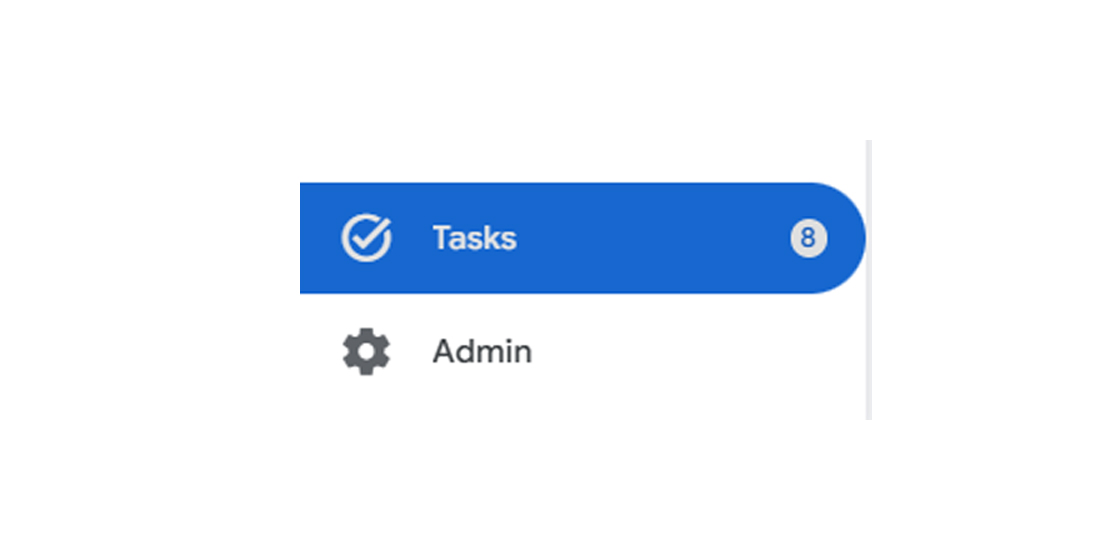
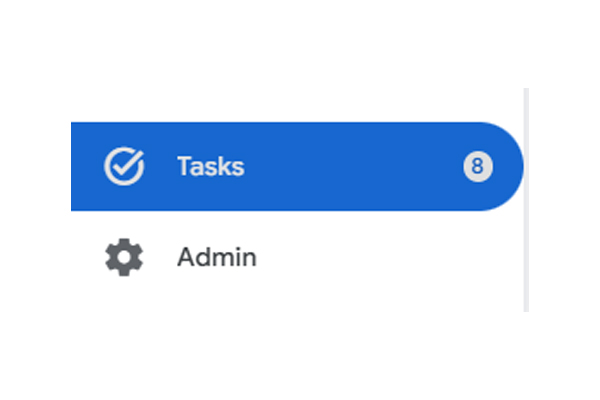
- Look at the bottom of the left-hand navigation menu.
- Click the Tasks button located just above the Admin gear icon.
Understanding the Task Categories
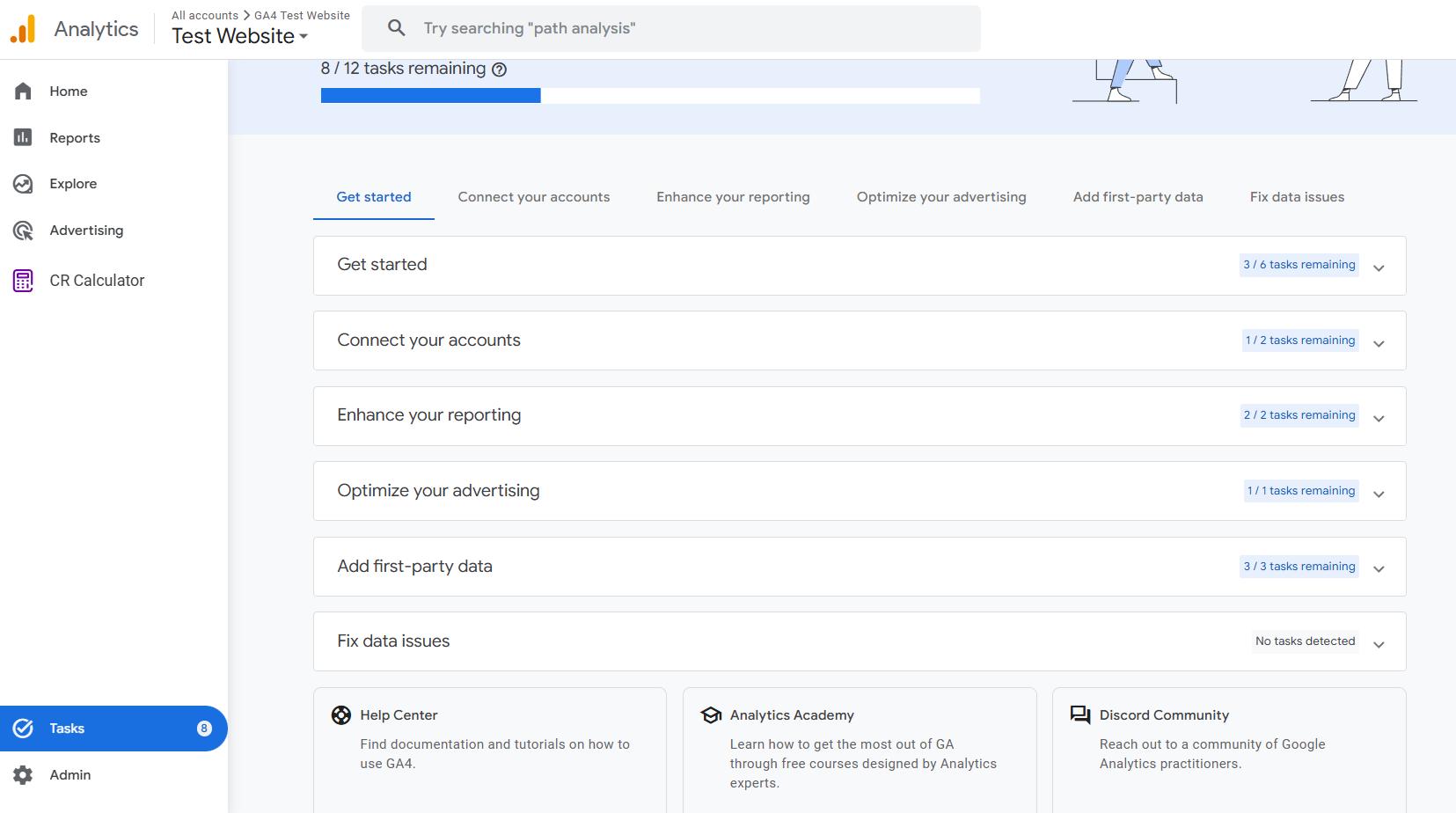
The Task Assistant dashboard groups your required actions into six distinct categories. You can click any task to expand it and begin the setup process, or collapse it to skip it for later.
1. Get Started
This section focuses on the foundation of your analytics setup. It ensures you are collecting data properly and helps you decide how that data appears in your reports. Tasks here include setting up data collection, turning on Google signals, setting up key events, creating audiences, enabling enhanced measurement, and confirming privacy settings.
2. Connect Your Accounts
Linking external platforms provides a unified view of your performance. The primary action in this category is linking your GA4 property to Google Ads, which allows you to view ad cost data and campaign performance alongside user behavior.
3. Enhance Your Reporting
Make your reports more detailed and actionable. This category prompts you to build custom insights and establish specific audiences so you can target your marketing to the right users effectively.
4. Optimize Your Advertising
If you run paid campaigns, this section is highly important. It guides you through creating conversion actions and targeting your ads to specific GA4 audiences, allowing you to optimize your bids based on actual on-site behavior.
5. Add First-Party Data
Adding external data gives you a complete view of how your business is performing. The Task Assistant will prompt you to set up User-ID, configure the measurement protocol, and import offline event data, campaign data, and item data.
6. Fix Data Issues
The final category serves as an active troubleshooting hub. It helps you identify and resolve data discrepancies or technical issues that skew your analysis. Tasks include resolving missing deep links, fixing misconfigured deep links, and excluding spammy users from your traffic.
Enhance Your GA4 Experience Further
Once you complete your setup using the Task Assistant, you will likely spend most of your time in standard reports and explorations. The native interface still has some frustrating limitations, but you can easily fix them with the GA4 Optimizer browser extension.
Our free extension adds massive productivity boosts directly to the Google Analytics interface. You can automatically fix shared read-only dates, keep your table columns visible with sticky headers, and even copy custom definitions across your fully configured properties with a single click.
For more technical details on the Tasks rollout, you can review the official Google Support documentation on the update. Google has also been rolling out other native GA4 improvements — if you're curious how their new AI features stack up, check out our hands-on review of the Analytics Advisor AI chatbot.
Frequently Asked Questions
What is the Task Assistant in Google Analytics 4?
The Task Assistant is a built-in dashboard in GA4 that helps users track their property setup progress. It guides you through collecting data, connecting Google Ads, importing first-party data, and fixing technical tracking issues.
Who can access Tasks in Google Analytics?
You must have the Administrator, Editor, or Marketer role to use the Task Assistant. Users with only the Analyst or Viewer roles cannot view or access the Tasks dashboard.
Where do I find the Task Assistant in GA4?
Sign in to Google Analytics, select your desired account and property, and look at the bottom of the left-hand navigation menu. Click the Tasks icon located just above the Admin gear icon.