
You have just created a new Google Analytics 4 property. The tracking is live, but your reports are empty because none of your custom event parameters have been registered. Now comes one of the most tedious and dreaded tasks in GA4: manually recreating every single custom dimension, metric, and calculated metric from your original property.
This process is slow, repetitive, and dangerously prone to typos that can corrupt your data. If you manage multiple clients or brands, you have likely wasted dozens of hours on this task alone.
But what if you could migrate your entire configuration in about 60 seconds? Here is how to do it.
Why GA4 Has No Native "Clone" Feature
In a perfect world, the GA4 Admin panel would have a button to "Clone property configuration" or "Export custom definitions". It does not. The only native method for copying your setup to a new property is painfully manual:
- Open two browser windows side-by-side.
- In one window, navigate to Admin > Custom definitions in your source property.
- In the other window, go to the same page in your destination property.
- One by one, click "Create custom dimension".
- Manually copy and paste the Dimension name, Scope, and Event parameter for every single item.
- Repeat the entire process for your custom metrics and calculated metrics.
For a property with 50+ definitions, this is an hour of mind-numbing work where a single typo in an event parameter name can lead to missing data.
How to Copy & Paste Custom Definitions in One Click
This workflow is exactly why we built the Custom Definitions Copy/Paste feature into the free GA4 Optimizer extension. It adds the copy and paste buttons that should have been in GA4 from the start.
To use it, you must have an Editor or Administrator role on both GA4 properties.
Step 1: Copy from Your Source Property
First, navigate to the property you want to copy the definitions from.
- In GA4, go to Admin > Data display > Custom definitions.
- Click the tab for what you want to copy (e.g., "Custom dimensions").
- Click the new "Copy dimensions" button with the GA4 Optimizer logo.
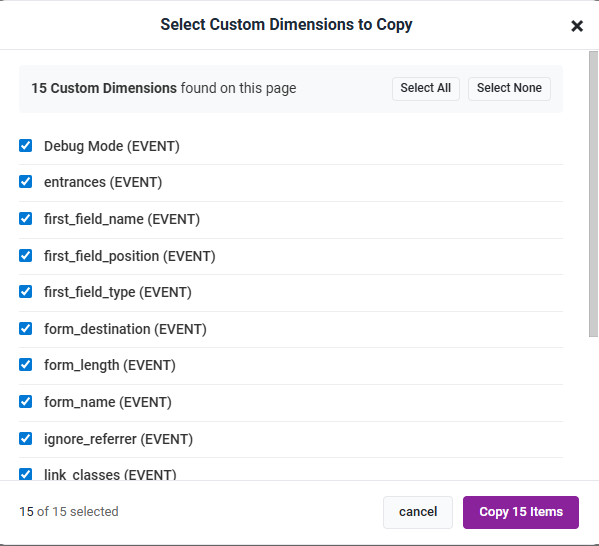
- The tool will scan all pages to capture every definition. A confirmation will appear when it's done.
- Repeat for the "Custom metrics" and "Calculated metrics" tabs if needed. The extension keeps all three types in its memory separately.
Step 2: Paste to Your Destination Property
Now, switch to the property you want to copy the definitions to.
- Go to Admin > Data display > Custom definitions.
- Click the tab corresponding to the data you copied (e.g., "Custom dimensions").
- Click the "Paste dimensions" button. It will show you how many items are on your clipboard ready to be created.
- A confirmation dialog will appear, showing you exactly what will be created.
- Click "Continue" and watch as the extension creates all the definitions for you automatically.
The tool is smart. It automatically detects and skips any definitions that already exist, so you can run the paste operation multiple times without worrying about creating duplicates.
Stop Rebuilding, Start Analyzing
Manually configuring GA4 properties is a drain on your most valuable resource: time. By automating the migration of your custom definitions, you eliminate hours of repetitive work, prevent costly data-entry errors, and ensure perfect consistency across all your properties.
Get this feature and a dozen other workflow enhancements by installing the free GA4 Optimizer extension from the Chrome Web Store.
Once your new property is configured, you can put those custom dimensions to work immediately. If you notice a dimension showing "(not set)" values, our guide on fixing the custom dimension (not set) issue explains why it happens and how to resolve it.
Frequently Asked Questions
Is there a built-in way to copy custom dimensions in GA4?
No, Google Analytics 4 does not have a native feature to copy, clone, or export custom dimensions, metrics, or calculated metrics from one property to another. The process must be done manually, one definition at a time.
How do you copy custom definitions between GA4 properties?
The fastest method is to use the GA4 Optimizer browser extension. It adds 'Copy' and 'Paste' buttons directly to the Admin > Custom definitions page, allowing you to migrate dozens of definitions in just a few clicks while automatically preventing duplicates.
What permissions do I need to copy custom dimensions in GA4?
To create or edit custom definitions, you must have an Editor or Administrator role on the Google Analytics 4 property. This is required for both the manual method and when using automated tools like the GA4 Optimizer extension.