Update: On September 21, 2026, Google significantly upgraded the GA4 Hostname filter by adding "Include" logic, allowing analysts to finally create proactive domain allowlists.
Your tracking script is vulnerable to being triggered in places you never intended. If you do not actively filter incoming data by hostname, your primary analytics property is at risk of serious data pollution.
For years, analysts struggled to keep Google Analytics 4 properties clean from ghost spam and rogue staging site data. While GA4 introduced an "Exclude" filter earlier this year, it forced teams into a frustrating game of whack-a-mole—requiring ongoing manual updates to block new spam hostnames as they appeared.
That limitation is finally gone. With the September 2026 update, GA4 now supports Include data filters for hostnames. You can now define a strict allowlist of approved domains, ensuring the integrity of your analytics data with minimal ongoing maintenance.
Here is exactly how the new filter works, the crucial Measurement Protocol caveat you need to know about, and the step-by-step process to configure it correctly.
Why You Need a GA4 Hostname Filter
The three most common sources of unwanted traffic in Google Analytics 4 include:
- Staging and Development Sites: When developers duplicate your website to a staging environment (like
staging.gaoptimizer.com), the GA4 tracking code is often copied with it. This mixes test conversions and internal developer traffic with your actual customer data. - Malicious Scrapers: Automated bots frequently scrape website content and republish it on entirely different domains. If they copy your site's source code wholesale, your tracking snippet fires on their unauthorized domain.
- Ghost Spam: Spammers can send fake hits directly to your GA4 measurement ID using the Measurement Protocol without ever actually visiting your website.
By implementing a Hostname filter, you drop this unapproved traffic at the processing level before it ever reaches your reports.
The Big Update: Hostname "Include" Filters
The native Hostname filter lives in the Data Filters section of your GA4 Admin panel.
Previously limited to Exclude filters, the new Include filter allows you to adopt a "zero-trust" data policy. Instead of trying to list every bad domain on the internet, you simply tell GA4: "Only process data if it comes from mywebsite.com."
Google included two critical behavioral rules in this update that you must factor into your data architecture:
1. Empty Hostnames Are Automatically Blocked
If you set up an Include filter, GA4 will automatically block events with an empty or missing hostname. Because a missing hostname is a classic hallmark of spam or abnormal gtag.js bot traffic, this default behavior provides an immediate boost to your data hygiene.
2. The Catch: Measurement Protocol is Exempt
This is the most critical technical detail of the update: Hostname Include filters will not be applied to events sent from the Measurement Protocol.
Google designed it this way to ensure backend server events (like CRM lead status updates or offline POS transactions) remain unblocked, as those hits often do not carry a traditional web hostname.
However, there is a dark side to this exemption: Ghost spammers almost exclusively use the Measurement Protocol to inject fake traffic into GA4. Because the Include filter ignores MP traffic, this new feature will not automatically block Measurement Protocol ghost spam.
How to Set Up a GA4 Hostname Filter
To lock down your standard client-side setup, configuring the native filter is a necessary data governance step. Ensure you have the Editor or Administrator role on the GA4 property before starting.
Step-by-Step Instructions
- Navigate to your GA4 Admin panel.
- Under Data collection and modification, click Data filters.
- Click the Create Filter button.
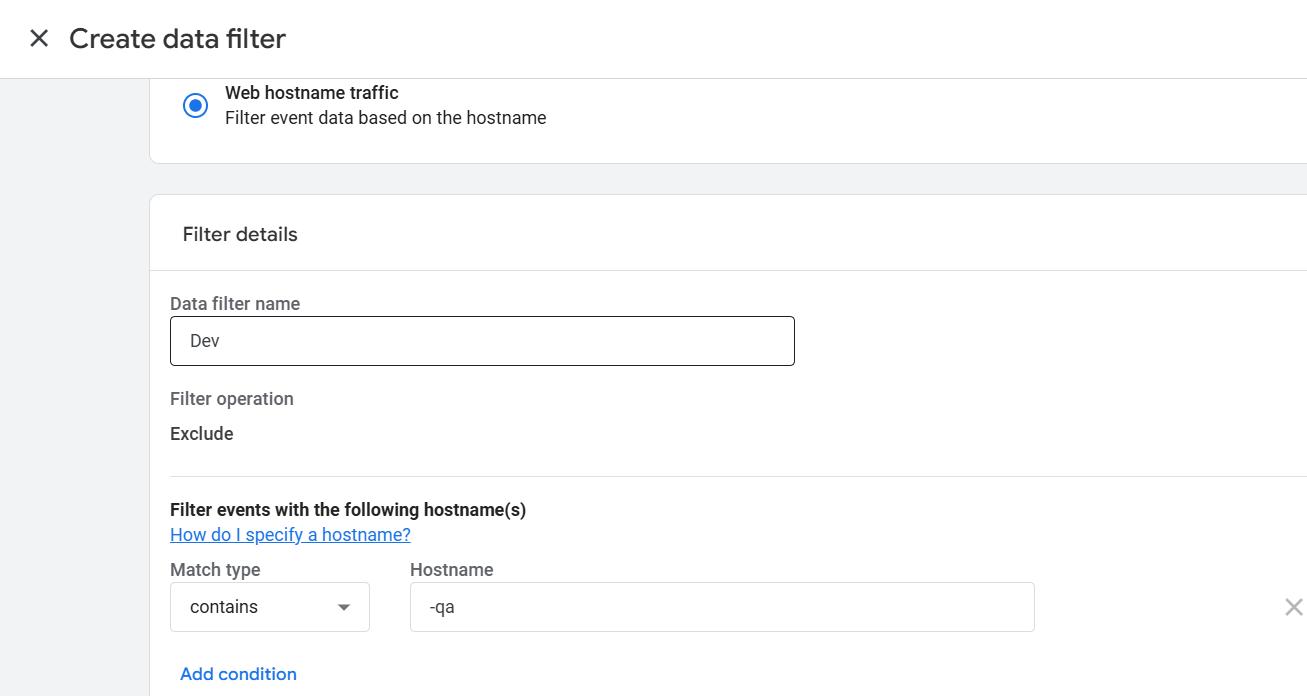
- Under the filter type selection, choose the Web hostname traffic option.
- Choose your Filter Operation: Select Include only to create an allowlist, or Exclude if you simply want to block a specific internal staging server.
- Define your approved hostnames using exact match or regex conditions (e.g.,
.*gaoptimizer\.com). - Set the filter state to Testing first to monitor the impact, then switch it to Active when you are ready to permanently drop the unapproved traffic.
Cross-Domain Tracking and Client-Side GTM Considerations
Prior to this update, many analysts used Google Tag Manager (GTM) to create a client-side allowlist by modifying trigger conditions so tags only fired when the Page Hostname matched their domain.
With the native GA4 Include filter now available, this GTM workaround is no longer necessary. You can simplify your GTM setup by firing tags on "All Pages" and letting GA4 handle the hostname filtering at the processing level.
Cross-Domain Tracking Warning: If you have cross-domain tracking set up between two sites (e.g., brand.com and checkout.com), you must ensure both domains are added to your Include filter using a Regex string like brand\.com|checkout\.com. If you forget to include your checkout domain, GA4 will permanently drop all of your purchase events.
Best Practices for Testing Your GA4 Data Filters
Never switch a brand new filter directly to the Active state. Always leave the filter in Testing mode for at least a few days.
Because GA4 filters are destructive (dropped data cannot be recovered), Google wisely built a testing phase into the filter workflow. While in Testing mode, GA4 still collects the data but flags it with a dimension called "Test data filter name."
You can add this dimension as a comparison in your standard reports to see exactly which page views and events the filter caught. This allows you to verify that you are successfully blocking the staging site without accidentally dropping legitimate traffic. Once confirmed, change the state from Testing to Active.
How to Stop Measurement Protocol Ghost Spam
Because the new GA4 Hostname Include filter exempts Measurement Protocol traffic, you still need an architectural defense against sophisticated ghost spam.
If you want to stop ghost spam permanently, the best architectural solution is Server-Side Google Tag Manager (sGTM). Instead of your website sending data directly to Google, it sends data to a secure cloud server that you control.
Because your actual GA4 Measurement ID is hidden on your server, spammers cannot easily scrape it from your source code. Furthermore, you can configure your server to validate incoming requests and drop unapproved payloads before they ever reach your analytics property. While this method requires more technical setup and monthly cloud hosting costs, it is the absolute best way to proactively block ghost spam.
Enhancing Your Administrative Workflow
Managing data quality, filters, and property configurations across multiple GA4 accounts is a time-consuming process. If you manage multiple properties for different brands or clients, setting up standard exclusions and custom tracking rules manually every time is tedious.
If you want a more efficient workspace, install the free GA4 Optimizer Chrome Extension. It is designed to fix the daily administrative frustrations of the GA4 interface.
With the extension active, you can easily use the Custom Definitions Copy/Paste feature to copy custom dimensions and metrics between different GA4 properties with a single click. This ensures your tracking taxonomy stays consistent everywhere, allowing you to spend less time configuring properties and more time actually analyzing the data.
Frequently Asked Questions
What is a hostname filter in GA4?
A hostname filter in Google Analytics 4 allows you to control traffic based on the specific domain name where an event originated. You can use 'Include' filters to create an allowlist of approved domains, or 'Exclude' filters to block known staging sites.
Does the GA4 Hostname Include filter block ghost spam?
Partially. While an Include filter blocks unauthorized domains and empty hostnames (like rogue gtag.js traffic), it explicitly does not apply to hits sent via the Measurement Protocol. To completely block Measurement Protocol ghost spam, Server-Side GTM remains the best solution.
Can I test a GA4 filter before making it active?
Yes. When you create a new data filter in GA4, it defaults to a Testing state. This allows you to apply a comparison in your standard reports to see exactly what data would be dropped by the filter before you permanently activate it.