
On July 1, 2026, Google rolled out an update to the Google Tag Manager Overview page. As part of the groundwork for the massive Google Tag Manager structural updates announced earlier this year, the official release notes describe the update as a streamlined interface designed to help new and experienced users navigate their tagging setups more efficiently.
However, many tracking specialists logging into their accounts this week have found the update confusing rather than helpful. The most jarring change is the disappearance of the workspace switcher from the top-left menu. Additionally, Google is now surfacing raw destination IDs directly on the front page, leading to a cluttered user experience.
If you are struggling to navigate the new GTM UI, here is exactly what changed and how to restore your missing tools.
How to Restore the Missing GTM Workspace Switcher
For a large portion of users, the workspace drop-down menu that historically sat at the top left of the GTM interface is completely gone.
According to Google's newly updated documentation, this is not a random bug or an A/B test. Google has intentionally hidden the workspace switcher by default for any container that currently only has one default workspace. The assumption is that novice users only need one workspace, so hiding the dropdown simplifies the interface. However, for professionals who frequently spin up new workspaces for testing, this sudden disappearance is highly frustrating.
Fortunately, there are two ways to get it back.
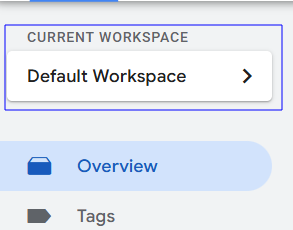
Method 1: Permanently Restore the Workspace Switcher
Google recently added a hidden toggle to user settings that allows you to force the interface to display the workspace dropdown, even if you only have one active workspace.
- Click the three vertical dots in the top right corner of the GTM interface (next to your profile picture).
- Select User Settings (or navigate directly to tagmanager.google.com/#/admin/user/settings).
- Under the Application Preferences section, check the box for "Always show Current Workspace".
- Save your preferences.
The tooltip for this setting explicitly confirms its purpose: "Keep the Current Workspace control visible to you even when the container has one workspace." Checking this box will immediately restore the left-hand switcher you are used to.
Method 2: Access Workspaces via the Hidden Overview Menu
If you do not want to alter your global application preferences, Google has relocated the initial workspace creation tools to the center of the screen.
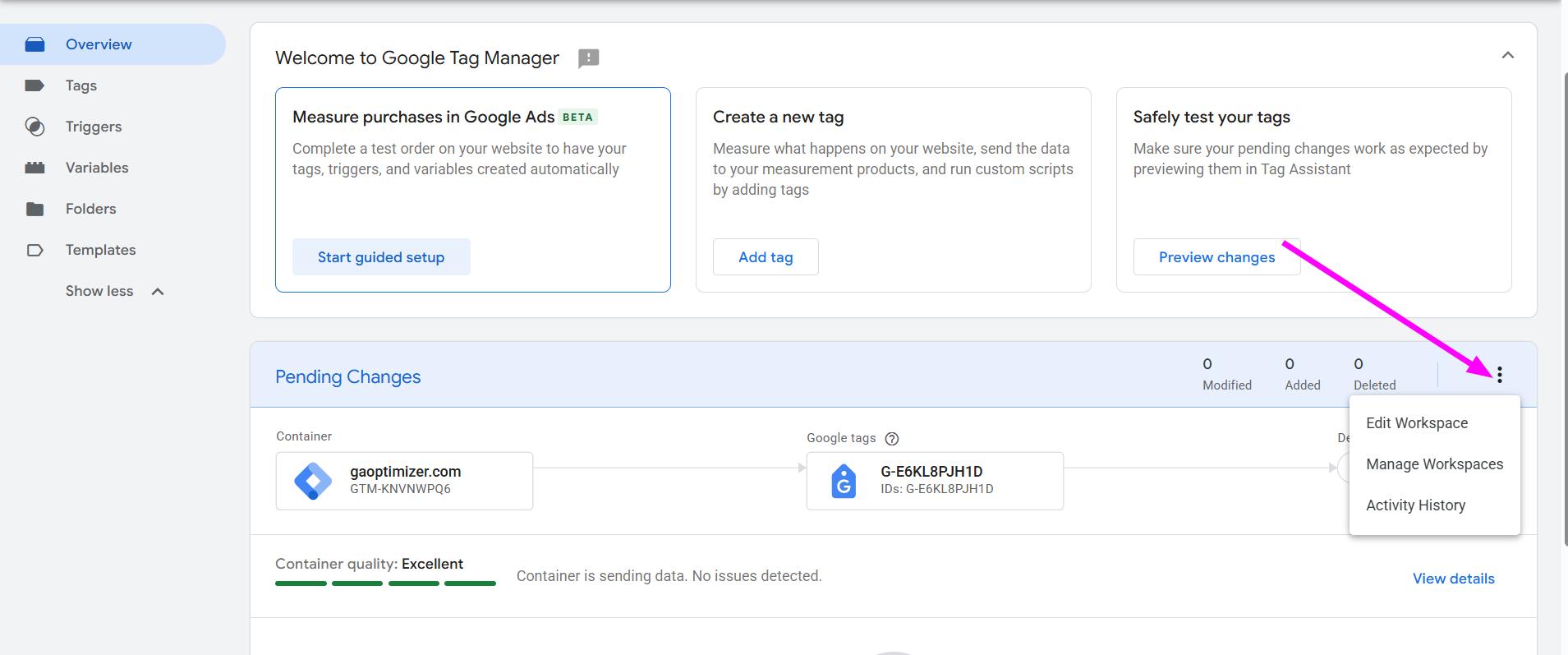
- Navigate to the Overview tab in your GTM container.
- Look for the Pending Changes section in the center of the page.
- On the far right side of this section, click the three vertical dots.
- Select Manage Workspaces from the dropdown menu to view, switch, or create new workspaces.
Once you create a second workspace using this menu, the interface recognizes that you are actively managing multiple environments, and the standard top-left workspace switcher will automatically reappear.
Native Tag Filtering Replaces Third-Party Hacks
Not all the changes in the July rollout were frustrating. Google quietly pushed a massive quality-of-life improvement to the workspace interface: Native tag filtering.
Historically, the only way to search for tags in a messy container was by relying on string matching in the search bar, or by installing third-party browser extensions like GTMFixer. Now, Google has added a dedicated filter icon right next to the search bar in the Tags menu.
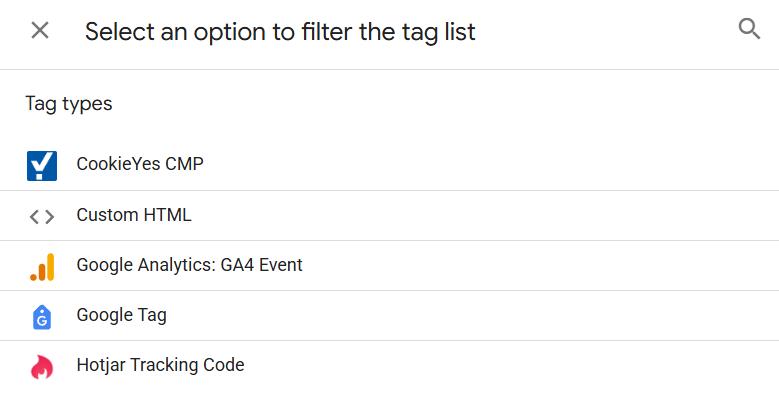
Clicking "Add filter +" opens a modal where you can select specific Tag types. This allows you to instantly isolate all of your GA4 Events, Custom HTML snippets, or third-party vendor tags (like your CookieYes CMP or Hotjar scripts) without having to rely on perfect naming conventions.

While Google Tag Manager extensions like GTMFixer paved the way for this functionality, the native feature actually handles bulk actions much better. Previously, if you used a browser extension to filter tags and clicked the "Select All" checkbox, GTM could glitch and select hidden tags. Because this new filtering is built natively into the DOM, checking the "Select All" box now correctly selects only the filtered tags, making bulk pausing or deleting a bit easier.
Cluttered Google Product Connections
Another significant shift in the new interface is how Google handles product connections. The new Overview page aggressively surfaces connected Google tags and destinations right on the front page.
While the intention might be to show users a unified view of their Google ecosystem, the execution falls short. The interface displays raw product IDs (like G-XXXXXX and AW-XXXXXX) rather than user-friendly descriptive labels.
For beginners, seeing a list of raw tracking IDs on the dashboard is highly confusing. It forces users to cross-reference IDs with their GA4 or Google Ads accounts just to understand which destinations are active. This UI change heavily favors Google products while pushing custom implementations into the background, a shift that aligns with GTM's broader transition into Google Tag Destinations.
The Visual Builder Beta Limitations
Alongside the UI layout changes, Google introduced a new visual event builder on the Overview page. Labeled as a beta feature, this tool promises to help users set up tags automatically by completing test actions directly on their website.
While codeless tagging sounds great in theory, the current implementation is heavily restricted. The visual builder is exclusively available for the Google Ads purchase event.
You cannot use it to track standard Google Analytics 4 interactions like button clicks, form submissions, or custom lead events. This limitation makes the feature irrelevant for the vast majority of day-to-day GTM configurations. For now, continuing to use standard triggers and the dataLayer remains the most reliable way to build your tracking setup.
The visual builder is not the only AI landing in Tag Manager either. Google has since started auto-generating version summaries at publish time, which is useful for solo marketers but a privacy concern for enterprise teams given it is an auto opt-in.
Video Walkthrough of the New Interface
For a deeper dive into the new interface changes, Julius Fedorovicius from Analytics Mania recently published an excellent video walkthrough. While he did not highlight the missing workspace switcher issue in his video (likely because he already had multiple workspaces active), the video provides a comprehensive look at how the visual builder and the rest of the new layout function:
Navigating GTM and GA4 More Efficiently
Interface updates that hide necessary features can disrupt your entire reporting workflow. Just like the hidden workspace switcher in GTM, Google Analytics 4 frequently buries valuable data behind multiple clicks and complex configuration screens.
If you are spending too much time digging through GA4 menus to validate the tags you just built in GTM, install the GA4 Optimizer Chrome extension.
The extension enhances the native GA4 reporting interface by adding tools that save you time. You can copy custom dimensions across properties instantly, view expanded table rows to prevent pagination, and access quick date range shortcuts. It restores efficiency to an interface that can otherwise feel tedious to navigate.
Frequently Asked Questions
Where is the workspace switcher in the new GTM UI?
You can permanently restore the workspace switcher by going to User Settings, selecting Application Preferences, and checking 'Always show Current Workspace'. Alternatively, click the three vertical dots under Pending Changes on the Overview tab to manage workspaces.
Why does my GTM overview page show raw IDs?
Google recently updated the GTM Overview page to surface connected Google products. This often displays raw IDs (like G-XXXXXX or AW-XXXXXX) instead of clear labels, which is a structural change aimed at showing tag destinations.
What events does the new GTM Visual Builder support?
Currently, the GTM visual event builder beta is strictly limited to generating tags for the Google Ads purchase event. You cannot yet use it for general GA4 events or other platforms.
How do I filter tags in Google Tag Manager?
Google recently added native tag filtering to the GTM interface. In your Tags workspace, click the filter icon next to the search bar. You can now filter your tags by Tag Type, such as GA4 Events, Custom HTML, or Consent Management tags.