
If you manage analytics for a digital marketing agency or an enterprise brand, tracking data anomalies is a daily requirement. When a major event occurs, documenting it inside Google Analytics 4 ensures that stakeholders and analysts understand exactly why traffic spiked or plummeted on a specific date.
While GA4 finally supports native annotations, the current Google implementation is fundamentally flawed for power users in two major ways. First, you are forced to create annotations one property at a time. Second, Google completely hides your annotations from the Explorations workspace.
For an agency managing fifty client accounts, this translates into hours of redundant data entry, only to have that context stripped away when you actually try to troubleshoot the data. To fix this workflow bottleneck, you must bypass the native interface constraints. Here is how to create bulk annotations across multiple GA4 properties simultaneously, and how to force those markers to appear in your advanced reports.
The Problem with Native GA4 Property Management
Google designed the GA4 interface for single-property operators. If you navigate to the Admin section and open the Annotations panel, you are only affecting the property currently active in your top-left dropdown menu.
There is no native concept of a "global annotation" or an "account-level annotation." If an event impacts your entire organization, you are forced to repeat the creation process manually for every property. This leads to severe data governance issues. Analysts simply stop logging events because the process is too tedious, resulting in historical reporting gaps that confuse stakeholders months down the line.
How to Add Annotations Across Multiple GA4 Properties
To solve this, you need to use a specialized workflow tool. By installing the free GA4 Optimizer Chrome Extension, you unlock a hidden "Bulk Create" capability directly inside your GA4 admin panel.
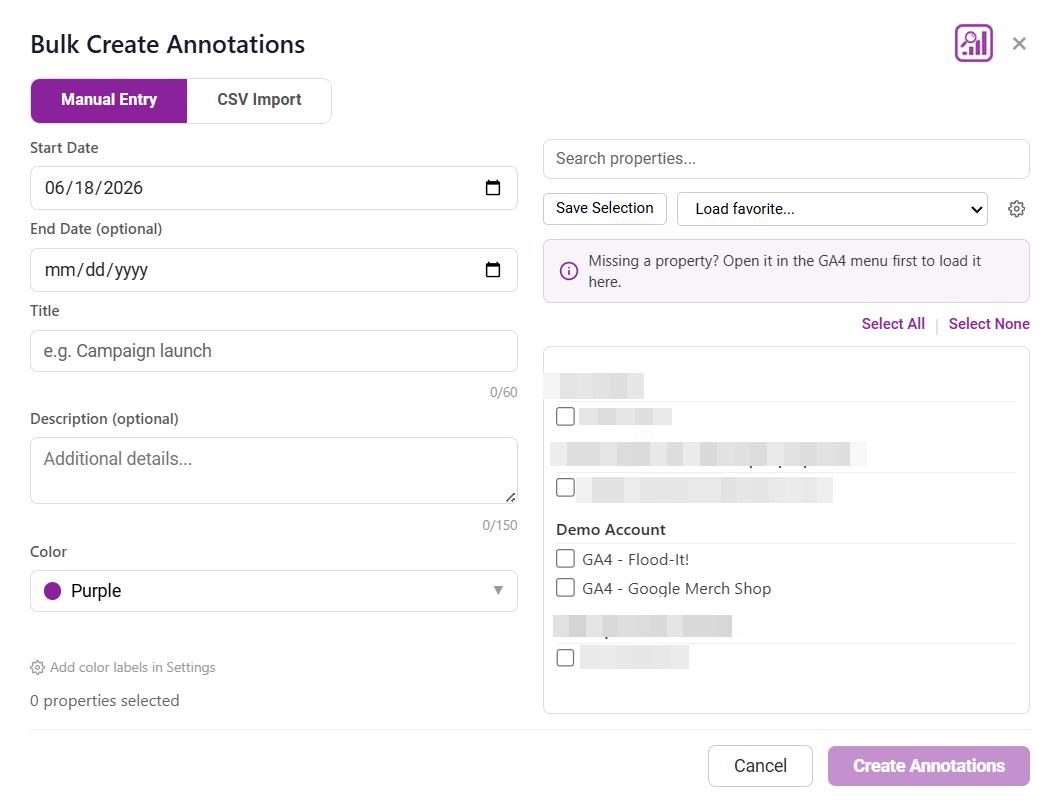
Once the extension is active, navigate to Admin > Annotations in GA4. You will see a new purple Bulk Create button. Clicking this opens a dedicated modal that provides two distinct ways to distribute your property markers. Alternatively, you can also access the "Bulk Create Annotations" button in the extension popup menu.
Method 1: The Manual Bulk Entry Workflow
The manual entry mode is designed for ad-hoc events that happen in real time, such as a temporary server outage or a sudden tracking script error.
Instead of switching properties, you write the annotation details (Start Date, Title, Description, and Color) a single time. Below the text entry fields, the tool displays a complete list of every GA4 property your Google account has access to.
- Fill out your annotation details.
- Check the boxes next to the specific properties that need this marker.
- Click Create Annotations.
The tool then cycles through the GA4 API in the background, sequentially applying the annotation to every property you selected.
If you frequently annotate the exact same group of properties (for example, all of your e-commerce clients, or all of your European regional sites), you can use the Save Selection feature. This allows you to name and save your property checklist, so you can reload that exact group with one click next time.
Method 2: CSV Import for GA4 Annotations
If you are migrating historical records or prefer to manage your tracking plan in a spreadsheet, the CSV Import mode is the most efficient option. GA4 natively allows you to export annotations to a CSV file, but it completely lacks an import function. The extension fixes this by accepting GA4's exact native export format.
- Export your existing annotations from a "master" GA4 property using the native GA4 export button.
- Open the Bulk Create modal and switch to the CSV Import tab.
- Upload the unmodified CSV file you just exported. The tool automatically reads the native formatting.
- Select the target properties from the checklist and execute the import.
This method allows you to sync dozens of historical annotations from an existing account to a brand new GA4 property in seconds. Because the tool accepts the exact file format GA4 generates, you never have to waste time reformatting columns in Excel before running an import.
The Second Native Flaw: Missing Context in Explorations
Fixing the creation process is only half the battle. Once your annotations exist, you need to actually see them when you are troubleshooting.
This highlights the second major flaw in Google's native implementation: GA4 only displays annotations on Standard Report line charts. If you are a power user building a highly customized Freeform report to troubleshoot a sudden data anomaly, Google strips the context away entirely. Explorations are where analysts actually do their deep-dive troubleshooting, making this omission incredibly frustrating.
You can fix this limitation directly through the extension. Ensure the Annotations in Explorations feature is toggled on in your extension settings. This actively forces your color-coded markers to appear as interactive dots directly on your exploration line charts along with a shortcut in the top left corner to access annotations at any time. It guarantees you never lose vital data context while digging into raw metrics.
Furthermore, if you find yourself managing tracking consistency across multiple properties, annotating is just one piece of the puzzle. You likely also struggle with keeping custom dimensions aligned. You can speed up your setup process by using the Custom Definitions Copy/Paste tool to clone your entire tracking taxonomy from one property to another seamlessly.
Frequently Asked Questions
Can I import annotations into GA4 using a CSV file?
Yes. While Google Analytics 4 does not natively support CSV imports for annotations, you can use the free GA4 Optimizer browser extension to upload a CSV file and distribute those annotations across multiple properties instantly. The tool accepts GA4's native export format, allowing you to easily migrate existing markers.
How do I add the same annotation to multiple GA4 properties?
Using the GA4 Optimizer Bulk Create tool, you can write your annotation once, select multiple properties from a checklist, and submit. The extension will automatically duplicate the annotation across all selected properties.
Is there a limit to how many GA4 properties I can bulk annotate?
There is no hard limit within the extension, but large operations are intentionally paced. The tool processes requests sequentially with built-in delays to avoid hitting GA4's strict API rate limits. The interface will provide an estimated completion time before you start.