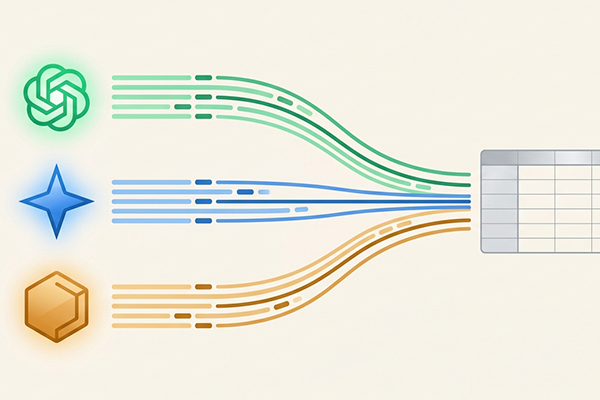
On May 13, 2026, Google quietly rolled out a highly anticipated update to Google Analytics 4. According to the official Google Analytics release notes, you can now measure and analyze traffic originating from popular generative AI chatbots via a new AI Assistant default channel group.
Update June 7, 2026: More properties are finally seeing the AI Assistant channel populate in standard reports. However, because GA4 processes data daily, this update is not retroactive. This means historical AI traffic remains trapped in older channel classifications, which creates immediate challenges for data analysis.
If your reports are coming up empty or your historical data looks wrong, you are not alone. Here is exactly how the new AI Assistant tracking works, why your historical comparisons are broken, and how to adjust your custom reporting to ensure you capture every click.
What is the New AI Assistant Channel in GA4?
Previously, traffic from AI chatbots was a disorganized mess. Depending on the tool and the browser, visits would fragment across Organic Search, Referral, or Direct traffic.
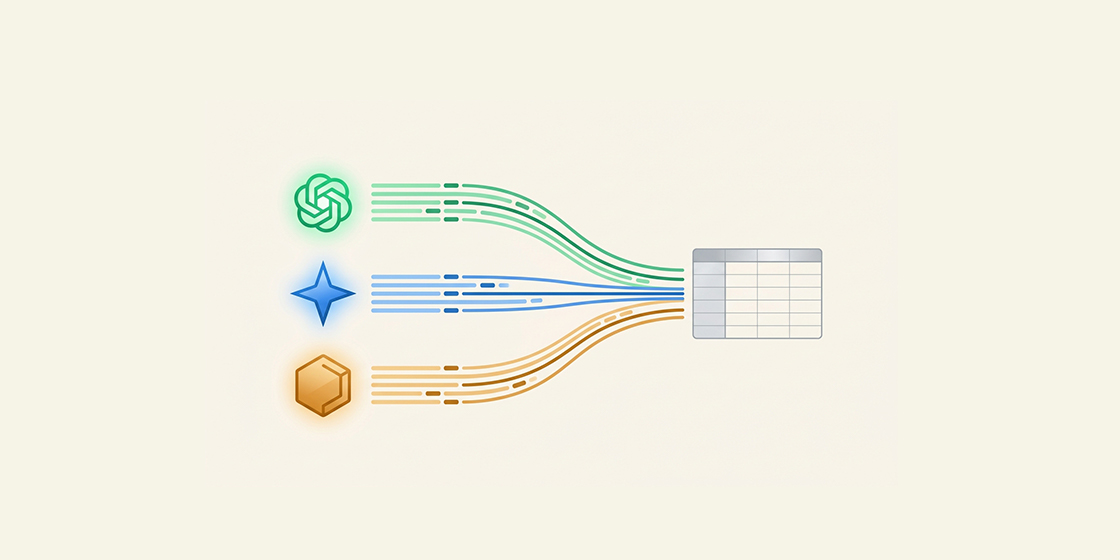
Google has introduced a dedicated classification system to fix this. When a user clicks a link to your website from a recognized AI tool, GA4 automatically standardizes the traffic source dimensions.
How GA4 Classifies AI Traffic
This update operates similarly to how Google handles Organic Search and Organic Social traffic. It relies on a backend "Source Categories" list maintained by Google. If the referring URL matches a recognized chatbot, GA4 overwrites the default parameters:
- Medium: Automatically set to
ai-assistant - Campaign: Automatically set to
(ai-assistant) - Default Channel Group: Categorized as
AI Assistant
By unifying these dimensions, Google allows you to monitor how generative AI impacts your business compared to traditional channels directly within standard acquisition reports.
Why You Might Not See AI Traffic Yet
Even with the feature actively rolling out, you might check your Traffic Acquisition report and see unexpected data gaps. There are two primary reasons for missing traffic attribution.
The Rollout Timeline and Missing Historical Data
The AI Assistant channel grouping rolled out gradually to properties worldwide. As of June 7, 2026, widespread availability is finally active and more analysts are seeing data populate.
However, because GA4 processes data forward only, you will not see retroactive data applied to your historical reports. Older historical AI traffic remains categorized under its original channels, such as Referral or Direct.
This strict cut-off date means that native historical Month-over-Month (MoM) and Year-over-Year (YoY) reporting for the AI Assistant channel is currently impossible. Your reports will misleadingly show zero AI traffic for the previous year compared to the current month.
The App Referrer Problem (Dark Traffic)
Even on new data, GA4 can only classify traffic if the referring tool passes along the referral data.
If a user clicks a link to your website from the desktop web version of ChatGPT, the referrer string is usually intact. However, if a user clicks a link from a native iOS or Android chatbot app, the operating system often strips the referrer data entirely. When this happens, GA4 has no way to identify the source, and the visit falls into the dreaded "Direct" traffic bucket.
Updating Your Custom Channel Groups
Many analysts grew tired of waiting for Google and built their own Custom Channel Groups using complex regular expressions (regex) to identify sources like chatgpt.com or claude.ai.
Now that an official channel exists, you might be tempted to delete your custom rules. You must keep them active for now. It is not time to switch to the default channel until you build up a larger baseline of default data.
Why You Should Keep Custom Channels Active
Because the new default channel is not retroactive, your custom channel group is the only bridge to your historical data. If you delete your custom definitions today, you lose the ability to compare current AI performance against previous months.
Additionally, Google's internal list of AI referrers may not catch niche tools or newer market entrants as quickly as your own manual list.
How to Combine Google's Definition With Your Custom Rules
To ensure you do not lose data, update your existing custom channel group rather than replacing it. Navigate to Admin, click into "Channel Groups", and modify your AI rule by adding a secondary condition:
- Keep your existing regex matching rule.
- Add an OR condition.
- Set the new condition to:
Default channel groupexactly matchesAI Assistant.
This hybrid approach ensures that if Google identifies a source you missed, or if your regex catches historical tools Google hasn't backfilled, the traffic remains properly categorized in your continuous reports.
Enhancing Your Reporting Workflow
Analyzing the impact of this new traffic source requires digging into your reporting interface. The default GA4 interface often requires excessive clicking to compare date ranges, monitor specific channels, and clean up messy data.
If you want a more efficient workspace, install the free GA4 Optimizer Chrome Extension to improve your daily workflow.
With the extension active, you can utilize sticky headers to keep your metrics visible as you scroll through long channel lists, copy custom channel definitions between properties easily, and instantly jump between reporting periods using 1-click date presets.
Frequently Asked Questions
Why is AI Assistant traffic not showing in my GA4 reports?
Google rolled out the AI Assistant default channel group slowly. Additionally, GA4 relies on specific referrer data to classify this traffic. If users access your site through a native AI mobile app that strips the referrer data, the visit will still be categorized as Direct.
How does GA4 identify AI Assistant traffic?
Google Analytics 4 automatically overwrites the traffic source dimensions when an incoming click matches a known list of AI referrers. It assigns 'ai-assistant' as the Medium, '(ai-assistant)' as the Campaign, and 'AI Assistant' as the Default Channel Group.
Should I delete my custom AI channel group in GA4?
No. Until Google's default list catches every possible AI source and builds enough historical data, your custom regex rules are necessary. The best approach is to update your custom channel group condition to include 'OR Default channel group exactly matches AI Assistant' so you capture both definitions.
Can I view historical AI Assistant traffic in GA4?
No. The AI Assistant channel group is not retroactive. Older historical AI traffic remains categorized under its original channels, such as Referral or Direct. Because of this, native historical Month-over-Month and Year-over-Year reporting for AI traffic is currently impossible using the default grouping.