Google just pushed a technical update to Google Tag Manager that will actively break specific, non-standard tracking setups.
On October 8, 2026, Google standardized how tagging snippets behave across all websites. The update forces gtm.js containers to initialize on page load regardless of any existing configuration commands.
While standardization sounds helpful, the technical execution carries a massive side effect. Commands that used to run silently in the background are now surfacing as highly visible gtag.config events in your dataLayer.
If your website uses a hybrid tracking setup where you mix a Google Tag Manager container with hardcoded gtag() snippets in your source code, this update will cause severe tracking issues. Here is exactly what changed, how it inflates your data, and how to fix your triggers today.
What Just Changed with gtag('config')?
Historically, when you placed a hardcoded gtag('config') snippet on your website to route data to Google Analytics or Google Ads, the command operated quietly. It configured the routing properties in the background without flooding your dataLayer array with extra event pushes.
The October update changes this behavior entirely.
To ensure high performance and reliability across the Google tag ecosystem, Google now forces all configuration commands to surface directly in the dataLayer as visible events. If your website source code contains a gtag('config', ...) command, and you open your browser console right now, you will likely see a brand new event firing on page load called gtag.config.
Note for pure GTM users: If your website runs a 100% clean Google Tag Manager setup and you never use hardcoded gtag() commands in your source code, you will not see this new event. This update specifically targets and impacts hybrid setups. If you do not use hardcoded gtag snippets, your setup is safe.
Risk 1: Wildcard Triggers and Misfiring Tags
Surfacing new events in the dataLayer is only dangerous if your GTM container is built to catch them indiscriminately. Unfortunately, many advanced tracking architectures are built exactly this way.
A common practice for tracking single-page applications (SPAs) or managing Server-Side GTM setups is using a wildcard Custom Event trigger. Analysts will set the event name to match the regular expression .*. This tells GTM to fire a specific tag on absolutely every single dataLayer push that occurs.
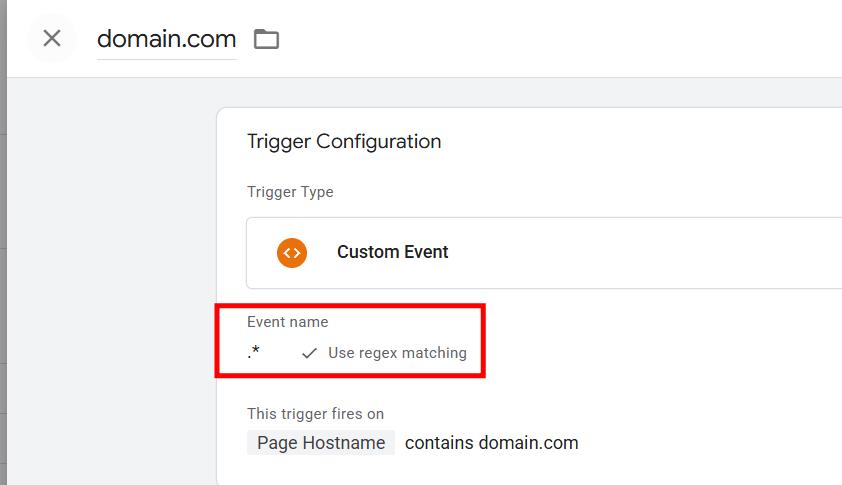
Before this update, a wildcard trigger might catch three standard events during a page load: gtm.js, gtm.dom, and gtm.load. Now, for hybrid sites, that exact same trigger will also catch the new gtag.config event.
Firing Triggers vs. Exception Triggers
Whether this update actually breaks your tracking depends entirely on how you use your wildcards:
- If used as a Firing Trigger (You are in danger): If you attach a
.*trigger to fire a global custom HTML script or a routing tag, that tag will over-fire today. Tags intentionally firing three times per page will suddenly start firing four or five times. This duplicates your data, inflates your pageview counts, and sends duplicate conversion signals to your advertising platforms. - If used as an Exception Trigger (You are safe): If you only use wildcards to block tags from firing on specific domains or pages, you are safe. The trigger will successfully block the tag on
gtm.jsjust like before, and it will now successfully block the tag ongtag.configtoo. The end result is the same.
Risk 2: Hardcoded Snippets and (not set) Errors
Double-firing wildcard tags are not the only threat this update brings. If your website has a messy tracking setup that mixes hardcoded scripts with Google Tag Manager, you might experience a spike in (not set) errors.
To be clear: Google is not changing your internal GTM triggers. If your Google Tag is set to fire on the "All Pages" trigger inside your workspace, it will stay there. You are safe.
However, if your developers placed hardcoded gtag('config') snippets directly in your website's source code alongside your GTM container, this update forces those specific snippets to initialize immediately on container load.
Why is that a problem? It introduces a race condition.
If your hardcoded configuration snippet initializes immediately, it may fire before your website's CMS has time to push context like user IDs, page categories, or consent states into the dataLayer. The initial pageview fires blank because the snippet outpaced your custom variables, causing your reports to fill up with (not set) values.
How to Fix Your GTM Configuration
If your site relies on hardcoded config tags and uses wildcard triggers, you need to audit your trigger logic immediately. Do not delete your wildcard triggers entirely, as your routing tags still rely on them to function. Instead, you need to apply targeted exceptions.
Step 1: Audit Your Global Triggers
Open your Google Tag Manager workspace and navigate to the Triggers menu. Use the native filter bar to isolate your Custom Event triggers. Look for any trigger where the Event Name is set to use regex matching with the .* value. Scroll to the bottom of the trigger settings and check the "Tags Firing On This Trigger" section. If tags are listed there, check each one to see if it is set as a firing trigger. If it is, proceed to step two. If it is set exclusively as an exception trigger, you are safe.
Step 2: Create a Blocking Exception
You need to instruct GTM to ignore the new configuration push.
- Create a new Custom Event trigger.
- Name it "Exception - Block gtag.config".
- Set the Event Name to exactly match
gtag.config. - Save the trigger.
Step 3: Apply the Exception to Your Tags
Go to the tags that use your wildcard triggers. Scroll down to the Triggering section and add your new "Exception - Block gtag.config" as an exception. This guarantees the tag will continue catching all standard dataLayer pushes but will completely ignore the new background configuration commands.
Step 4: Clean Up Your Base Code
Finally, review your website source code. Google explicitly recommends ensuring all pages use the standardized gtag.js snippet properly. If you have legacy code mixing old analytics.js commands with modern config snippets, the initialization process will fracture and cause further dataLayer anomalies. Clean your header scripts to match the official modern documentation.
Validate Your Tags Safely (Without Data Leakage)
Documenting your tags is important, but ensuring they comply with your company's privacy policies is mandatory. You need to validate your data without exposing your internal testing process to external servers.
The GA4 Live Debugger is a 100% local Chrome extension that unwraps gtag() commands, monitors your dataLayer pushes, and inspects network hits in real time. Because it runs locally in your browser, your payloads are never sent to external servers or AI training models.
The latest version includes an automated Security & Compliance Auditor that actively protects your implementation while you test:
- Live PII Detection: Automatically flags if your tags are accidentally scraping and sending personal data like emails or phone numbers to GA4.
- Server-Side GTM Routing Mismatch: Verifies that your data is actually routing to your secure cloud server and flags hits that bypass your endpoint to go straight to Google.
- 3rd-Party Pixel X-Ray: Instantly scans your GTM containers and lists all the marketing vendors loading on your site so you can audit your exposure.
Audit GA4 & GTM Locally
Catch PII leaks, validate Server-Side routing, and block test hits on production. Free, secure, and fully local.
Add GA4 Live Debugger to ChromeFrequently Asked Questions
What is the gtag.config dataLayer event?
The gtag.config event is a visible dataLayer push introduced by Google in October 2026. It surfaces configuration commands that previously executed silently in the background, standardizing how snippets initialize across websites.
Why are my GTM tags double-firing after the October update?
If you use custom event triggers with wildcard regular expressions (like .*) in Google Tag Manager, those triggers will now catch the new gtag.config event. This causes any tag attached to that trigger to fire an extra time per page load.
How do I block the gtag.config event in Google Tag Manager?
To block the event, edit your global wildcard triggers and add an exception. Create a new trigger exception where the Event exactly matches gtag.config, and apply it to any tag that should not fire on configuration commands.
Will the gtag('config') update cause (not set) errors in GA4?
It can. By forcing the configuration snippet to initialize immediately on container load, the tag may fire before your website has time to push custom dimensions and user properties into the dataLayer. This race condition causes the initial pageview to fire blank, resulting in an increase of (not set) values in your reports.