Google Tag Manager just rolled out an automatically generated summary feature for container publishing. When you submit workspace changes, an AI model scans your edits and writes a description for you.
For solo marketers moving fast, this is highly useful. It provides instant context for future container audits and fixes the common problem of empty version logs. However, for enterprise organizations, this update presents a massive security and privacy blind spot.
Here is how the new AI version summary works, why it poses a compliance risk, and how your team should actually document tracking setups.
How the New Suggested Version Summary Works
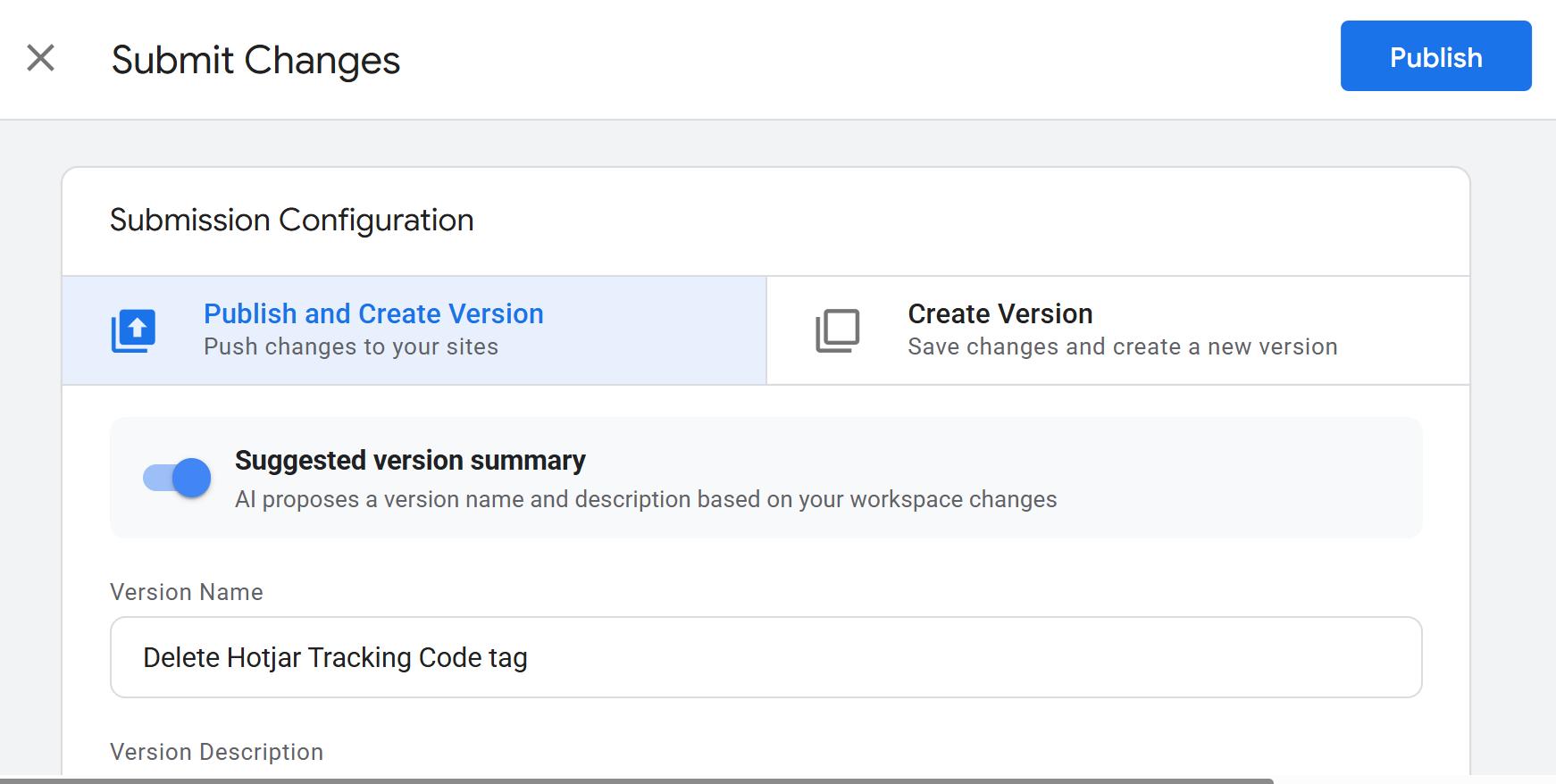
The next time you hit the Submit button in Google Tag Manager, you will see a new toggle under the Submission Configuration settings labeled Suggested version summary.
When this toggle is active, Google uses AI to propose a version name and description based directly on the changes you made in your workspace. For example, if you remove an old script, the AI will auto-fill the Version Name with a clear action like "Delete Hotjar Tracking Code tag".
This feature is a massive win for lean teams and business practitioners. Many companies do not have a dedicated GTM specialist on staff. Tracking changes are often passed between media buyers, external agencies, and web developers. Version descriptions are frequently left blank. This AI feature ensures that as container ownership changes, there is at least a baseline record of previous activity.
This should only be a starting point. Teams must still use structured, templated documentation alongside the AI generation to maintain standard operating procedures.
The Hidden Enterprise Security Risk: Auto Opt-In AI Training
The convenience of this feature masks a severe enterprise security risk. Google has released absolutely zero privacy statements specific to this AI integration.
If this tool operates anything like the Google Analytics Ask Advisor AI privacy risks, Google is actively processing and potentially training its language models on the workspace changes and tag configurations you submit.
The most alarming part of this rollout is the implementation method. This feature is an auto opt-in. It begins generating text the moment you hit Submit. You do not have to click a button to accept terms of service or opt into data sharing.
Enterprise organizations enforce strict policies against feeding internal system architectures into public LLMs. GTM containers hold highly sensitive logic. They contain vendor lists, custom user variables, proprietary revenue tracking configurations, and internal naming conventions. Right now, Google provides no admin kill switch to disable this feature at the account level. IT and security teams cannot prevent employees from passing this structural data into Google's AI processing queue.
Your GTM Container is Already Public (The GA4Spy Reality)
While AI training is a new security layer to worry about, organizations must remember that GTM Web Containers are inherently vulnerable. Because they load on the client side, your configuration is already public.
The data leakage threat goes beyond Google's new AI. Third-party tools are constantly scraping the web. A recent update to the auditing tool GA4Spy now allows anyone to enter a GTM Web Container ID and reverse-engineer the entire configuration. Competitors can see your exact trigger logic, vendor tags, and custom dataLayer variables. Auditing agencies and opportunistic actors can scan your setup looking for compliance pitfalls and reasons to sue.
This is a massive risk to enterprises. Organizations with strict security requirements must migrate to Server-Side GTM (SGTM) and properly clean out their Web Containers. Simply buying a server is not enough. If you leave your Meta, LinkedIn, and custom HTML tags in your Web Container, tools like GA4Spy can still see them. To truly secure your setup, you must migrate your marketing tags into the Server Container, stripping your Web Container down to a "dumb conduit" that only routes data to your server. Because the Server Container executes in the cloud, it completely obscures your measurement IDs, vendor pixels, and API keys from front-end scraping tools.
How to Properly Document GTM Changes
You cannot rely solely on automated version summaries to explain complex tag setups. An AI can tell you what changed, but it cannot tell you why it changed. To maintain a clean container, implement a two-step documentation process: standardized version descriptions and tag-level notes.
Step 1: Use a Version Description Template
When publishing a workspace, treat the AI-generated text as a starting point. Supplement it with a standardized template so other team members immediately understand the business context. Top GTM experts recommend filling out these core fields in every version description:
- Ticket ID: Link back to Jira, Asana, or your project management tool.
- Requested By: The stakeholder who asked for the change.
- The "Why": A one-sentence explanation of the business goal (e.g., "Tracking PDF downloads for the Q3 lead generation campaign").
- Testing Status: Confirm how the tags were validated before publishing.
Pasting a simple template like this into your version description ensures consistency regardless of who publishes the container.
Step 2: Utilize Tag-Level Notes
Version logs get buried over time. For long-term context, you should utilize the native Show Notes function inside individual GTM elements.
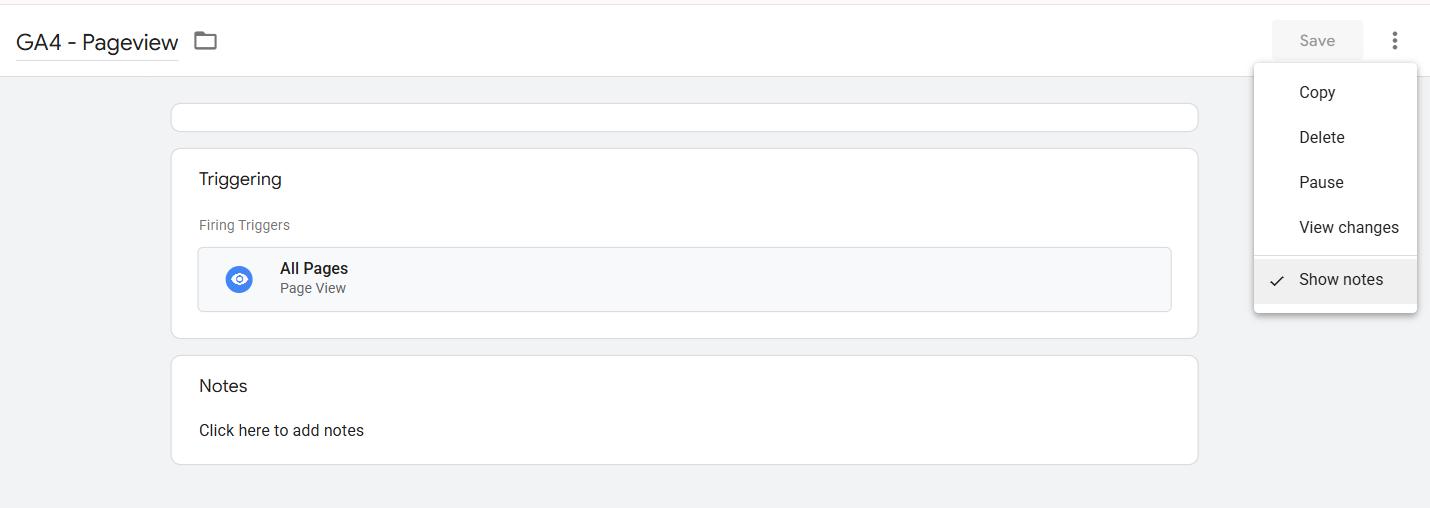
- Open any Tag, Trigger, or Variable.
- Click the three vertical dots in the top right corner.
- Select Show Notes.
- Type your documentation directly into the text field.
Add notes to every new tag. Explain why the tag exists, who requested it, and the date it was approved. When the next agency or employee takes over the container, the context lives on the tag itself rather than being lost in an old version history log.
If you want to speed up your container management and documentation workflows, check out our guide on the best Google Tag Manager browser extensions. We highly recommend GTMFixer from that list, as it includes a setting to automatically send your version notes directly to GA4 as annotations.
Validate Your GA4 Tags Safely
Documenting your tags is important, but ensuring they actually fire correctly is mandatory. You need to validate your data without exposing your internal testing process to external servers.
The GA4 Live Debugger is a 100% local Chrome extension that monitors your dataLayer pushes and GA4 network hits in real time. It allows you to import your tracking taxonomy via Google Sheets, surfacing your exact definitions directly inside the debugging feed. This ensures your whole team stays on the same page with consistent definitions for events, parameters, and Measurement IDs without switching tabs.
Best of all, it never sends your tracking data to external servers or AI models. Everything stays safely in your browser.

Author's Toolkit: To validate tags and server-side routing securely, we use the free GA4 Live Debugger. It runs 100% locally in your browser so your payloads are never exposed.
Get the GA4 Live Debugger