

You are analyzing a custom report in Google Analytics 4. You have your dimensions set, your metrics applied, and you are staring at a table full of raw numbers.
But raw numbers rarely tell the whole story. If a specific landing page brought in 4,500 sessions, is that good? To know for sure, you need to know what percentage of your total traffic that page represents: the percentage of column total.
In Universal Analytics, this was a standard feature. In GA4 Standard Reports, you get a small summary percentage at the top of your columns. But when you move into GA4 Freeform Explorations to do real analysis, the percentage of column total is completely missing.
Here is how analysts are currently dealing with this missing feature, and how you can fix it instantly without leaving your browser.
The Manual Workaround: Exporting Data
Because Google did not include a percent of total calculation in the GA4 Exploration interface, the official solution is a manual workaround.
To find your percentages, you have to:
- Build your Freeform Exploration.
- Click the export icon in the top right corner.
- Download the data as a CSV or Google Sheet.
- Open the file and manually write a formula dividing each row by the column total.
This workflow breaks your concentration. If you notice a trend and need to add a new dimension like "Device Category" to your report, you have to start the entire export and calculation process over from scratch.
The Automated Solution: Add Percentage of Column Total with GA4 Optimizer
You should not have to leave Google Analytics just to do basic division. We built a solution directly into the free GA4 Optimizer browser extension that brings this missing context back to your reports.
When you have the extension installed, you do not need to click any buttons or configure any settings. The calculation happens automatically.
Here is how it works:
- Open a Freeform Exploration and ensure you are using the Table visualization.
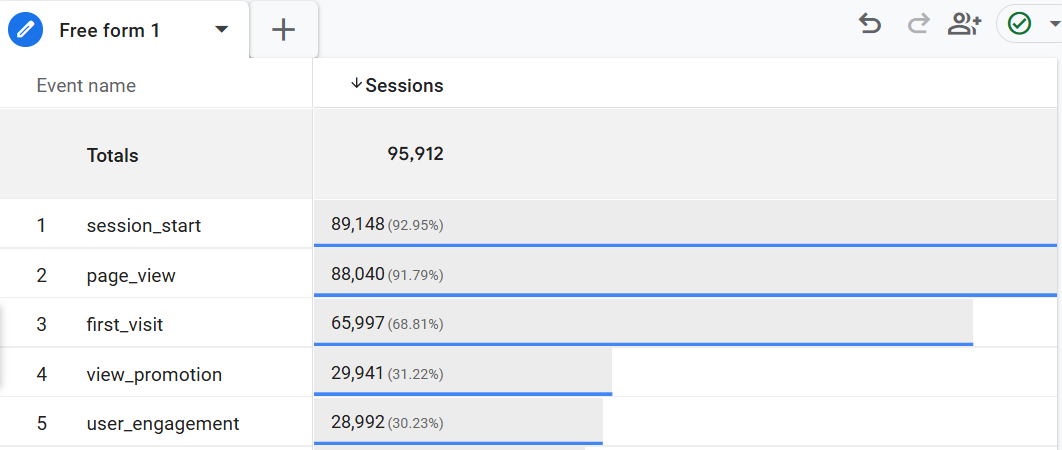
- Look at your metric columns. The extension automatically calculates the percentage contribution of each row relative to the total at the bottom of that column.
- The percentage value is injected directly into the table cell next to the raw number in parentheses (for example, "4,500 (15.2%)").
- If the raw number is too large and the percentage does not fit neatly inside the cell, the extension hides the inline text to keep your table clean. In this case, simply hover your mouse over the cell, and a tooltip will display the exact percentage.
A Note on Visibility
For the extension to run this calculation, the "Total" row needs to be visible on your screen. If you scroll far down a long table and the total row disappears from view, the percentages might rely on the last known total or prompt you to scroll up so the tool can capture the numbers again.
Stop Exporting Just to See Percentages
Context is everything in data analysis. The percentage of column total is one of the most basic pieces of context you can have in a GA4 Freeform Exploration, and Google simply left it out. By adding it back directly into your table, you can spot top performers, identify traffic distribution, and make decisions without ever opening a spreadsheet.
You can get this feature, along with 20 other workflow improvements, by installing the GA4 Optimizer extension from the Chrome Web Store. It's completely free.
If you're working with shared read-only Explorations, you may also run into locked date ranges. Our Date Range Override lets you change dates on those reports without duplicating them. And if your Exploration is showing sampled data (the yellow warning icon), check out our guide on fixing sampled data in GA4 to make sure your percentages are based on accurate numbers.
Frequently Asked Questions
How do I see the percentage of column total in GA4 Explorations?
By default, Google Analytics 4 does not show column percentages in Freeform Explorations. You must export the data to a spreadsheet to calculate it manually, or use the GA4 Optimizer browser extension to see the percentages automatically directly in your report table.
Does GA4 have a percent of total metric?
GA4 standard reports show a basic percentage of total under the main metrics. However, this feature is completely missing in Explorations, meaning you cannot natively see the percentage contribution of a specific row without exporting the data.
Why are my percentages not showing up with the extension installed?
This specific feature only works in Freeform Explorations that use the Table visualization. It will not activate if you are using a Funnel, Path, or Cohort exploration. Additionally, ensure the "Total" row is visible on your screen so the extension can perform the calculation.