
Sharing explorations in Google Analytics 4 helps distribute insights across your team. However, when someone shares a report with you, the date range is permanently locked in read-only mode. You can view the data, but you cannot adjust the timeframe. We built the Date Range Override feature in GA4 Optimizer to solve this exact problem.
Why Locked GA4 Explorations Slow Down Analysis
When you receive a link to a helpful Funnel or Free Form exploration, you naturally want to apply it to your own reporting periods. By default, GA4 forces you to duplicate the entire report just to change the calendar.
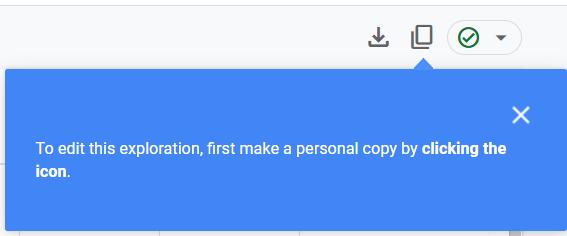
If you try to click the date selector, GA4 blocks you with a warning to "make a personal copy" first.
Duplicating reports rapidly clutters your workspace. It also makes it difficult to track which version is the source of truth for your team. Analysts need a way to dynamically adjust the timeframe on the fly without altering the source report or creating endless duplicates.
How to Change Dates on Read-Only GA4 Explorations
Our Date Range Override feature modifies the interface to bypass this restriction. This allows you to query Google Analytics for the exact dates you need. The original report remains completely untouched for the owner.
Step-by-Step Instructions
Here is how you can edit locked dates using the extension:
- Install GA4 Optimizer: Add our free browser extension to Chrome, Edge, or Firefox.
- Open your shared report: Navigate to the read-only exploration in GA4.
- Click Edit Date: Look below the locked date range in the Variables panel for the new Edit Date button.
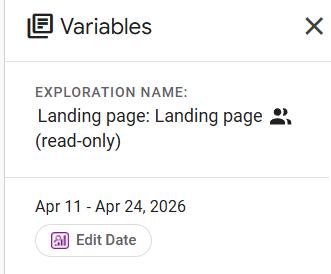
- Select new timeframes: Choose your preferred start and end dates. If the report has an active comparison, you can edit the comparison dates here as well.
- Apply and reload: Click Apply. The page will reload and fetch fresh data for your chosen range.
Visual Confirmation of Active Override
Once active, the date label turns purple to signal that an override is in place. You can instantly revert to the original dates by clicking the Clear button.
Works Across All Exploration Techniques
The override feature is highly versatile and applies to all standard GA4 exploration types. Whether you are analyzing user drops in a Funnel exploration, tracking navigation in a Path exploration, or checking audience segments in a Cohort report, the tool handles the date manipulation seamlessly.
Export Considerations
If you need to export your findings, the exported CSV will contain the correct data values for your new date range. Please note that the "Date Comparison" column header in the exported file will still display the original text label due to GA4 native formatting limits. The extension will provide a quick warning prompt to remind you of this before the export begins. The values you extract are still going to be for the date range you selected.
Additional GA4 Optimization Features
Unlocking dates is just one way we fix the Google Analytics interface. GA4 Optimizer includes several other tools designed to save you time and reduce reporting friction.
For example, if you have ever sent a colleague a GA4 report link only to have them hit a "Missing permissions" error, our Smart Share Link fix handles that automatically. You can also keep your table columns visible with sticky headers, copy custom dimension definitions between properties, or generate an exit pages report with a single click.
Frequently Asked Questions
Why can't I change the date range on a shared GA4 exploration?
When a user shares a Google Analytics 4 exploration in read-only mode, the platform natively locks the date range to the original settings. You must either duplicate the report or use a browser extension to override the locked dates.
How do I edit dates on a read-only GA4 report?
You can install the GA4 Optimizer browser extension to unlock the date selector. It adds a direct Edit Date button below the locked variables, allowing you to fetch fresh data for any timeframe.
Does changing the date range modify the original shared GA4 exploration?
No. Using a date range override only fetches new data for your current browser session. It does not alter the original report for the owner or other viewers.