You've just built the perfect report in Google Analytics 4. You’ve applied the right segments, filtered the data, and uncovered a massive insight. Now, you just need to send it to your team or client.
Sharing a report in GA4 should be simple, but Google handles Standard Reports and Explorations differently. Worse yet, even if you share the link correctly, there is a hidden trap that causes your links to fail for your colleagues with a frustrating "Missing permissions" error or a confusing "Welcome to Google Analytics" setup screen.
In this guide, we'll show you exactly how to share both types of reports in GA4, and how to guarantee your shared links always open perfectly using a simple, free tool.
How to Share a Standard Report in GA4
Standard reports (like your Traffic Acquisition or Pages and Screens reports) are the easiest to share because they are automatically available to anyone with access to your GA4 property.
Here is how to share a direct link to your exact view:
- Open the Standard Report you want to share and apply any date ranges, filters, or comparisons you need.
- In the top-right corner of the GA4 interface, look for the Share this report icon (it looks like three connected dots).
- Click the icon to open the share panel.
- Click Share Link.
- Click Copy Link.
You can now paste this link into Slack, Teams, or an email. When a colleague clicks it, GA4 will load the exact report, complete with the date ranges and filters you applied. However, as many users quickly discover, these links often fail to open due to a hidden trap in Google's system.
How to Share an Exploration Report in GA4
Explorations are GA4’s custom reporting tool. By default, Explorations are private. Even if a colleague has Admin access to your GA4 property, they cannot see your Explorations until you explicitly share them with everyone who has access to the property.
Here is how to share an Exploration:
- In the top-right corner, click the Share Exploration icon (it looks like two people with a plus icon).
- Note: Once you click this, the Exploration becomes read-only for everyone else. They can view it, but they cannot edit it or change the date range natively. If your colleague needs to view the report for a different time period, they can either duplicate it or use the Date Range Override feature to change the dates without duplicating.
- Once the Exploration is shared, simply copy the URL from your browser's address bar where the exploration is.
Unlike Standard Reports, there is no "Copy Link" button for Explorations. The browser URL is the link you need to share.
The Hidden Trap: Why GA4 Shared Links Fail
You followed the steps above. You sent the link to your client or boss. Five minutes later, you get an email saying the link is broken.
When your colleague clicks the link, they usually experience one of two highly confusing outcomes:
Outcome 1: The "Missing Permissions" Error
GA4 loads, but immediately throws a popup error blocking the report:
Missing permissions
You do not have access to the account or property. Contact an Analytics administrator who has the Manage Users permission.
Outcome 2: The "Welcome to GA" Redirect
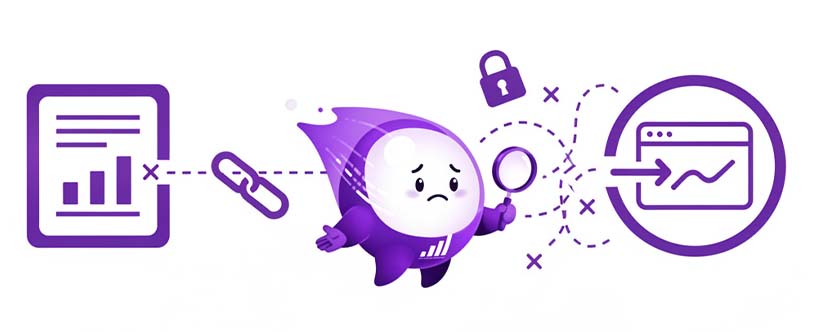
Even worse, sometimes GA4 completely strips the URL and redirects the user to the /provision/ setup page. They are greeted with a giant "Welcome to Google Analytics" screen and a blue "Start measuring" button. This is very confusing for the user, even if they do switch to the right account with access they still can't retry that report link that was sent to them becaause the result will still be same.
You check their permissions and they definitely have access. So why did the link break?
This is the most common frustration in GA4, and it happens because of Google's multi-account login system.
When you're signed into multiple Google accounts on your browser (e.g., your personal Gmail and your work email), Google assigns them an index number (authuser=0, authuser=1, etc.). When you copy a link, it often hardcodes your specific number into the URL. When your colleague clicks it, their browser tries to open it with their default account, which is often the wrong one. Google Analytics gets confused and throws the error or redirects them to create a new property.
The Fix: How to Guarantee Your Shared Links Always Work
For years, the only solution was to either teach your colleagues about Google's complicated "authuser" system, or verbally guide them through navigating to the right property, clicking "Explore", and finding the specific report name. It's an incredibly frustrating system, but don't fret! We have a fix for you.
We built a completely free Chrome Extension to fix this exact problem automatically. When you install GA4 Optimizer, it supercharges your sharing workflow for both the sender and the receiver:
1. For the Sender: The "Smart Share Link" Button
When you open the share panel in a GA4 Standard Report, our extension automatically adds a Copy Link with Smart Access Note button alongside the native GA4 button.
Instead of just copying a broken URL, this button copies the link along with a helpful note explaining what to do if they get the permission error, preventing the back-and-forth messaging before it even happens.
2. For the Receiver: The Smart Account Switcher
If your colleague clicks a broken link, having this extension installed means they will no longer be blocked from accessing your reports.
When GA4 throws a "Missing Permissions" error, or redirects the user to the "Welcome to Google Analytics" provision page, our extension intercepts it. It instantly provides a "Scan Logged-in Accounts" overlay which quickly scans the accounts the user has and allows them to re-attempt that link with one of their other logged-in accounts.
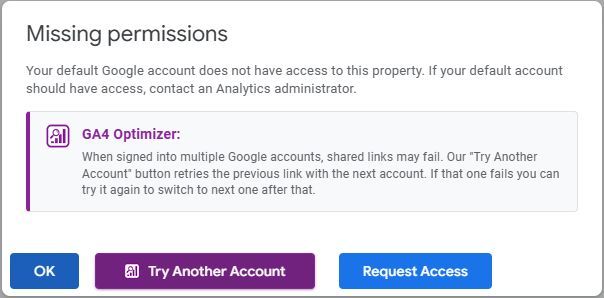
Once the accounts are scanned, the user can simply choose the account they know for sure has access. No more going back and forth with your client or colleague. No more having to troubleshoot the user's access.
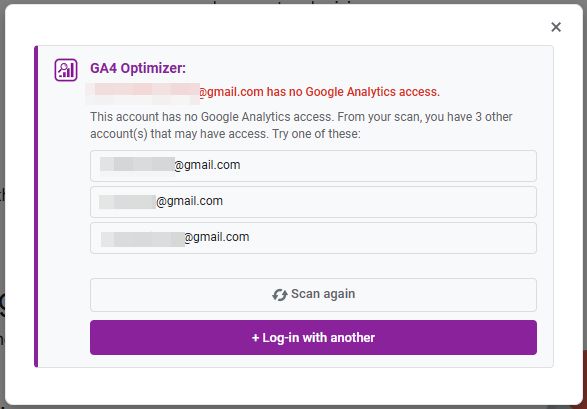
For a full walkthrough of how the Smart Account Switcher works, including troubleshooting tips, see our Fix Shared Links documentation.
Stop Fighting the GA4 Interface
Sharing data should be the easiest part of your job. By adding GA4 Optimizer to your browser, you not only fix shared links, but you gain access to 20+ other features like changing dates on read-only shared Explorations, 1-click Exit Pages reports, sticky table headers, and custom calculated metrics.
Frequently Asked Questions
Why does GA4 say 'You do not have access to the account or property' when I know I do?
It's possible that you might really not have access and may need to request it. However, in our experience, this error usually occurs when you are logged into multiple Google accounts. GA4 is trying to open the link with your default account (often a personal one) instead of the account that has the correct permissions. The GA4 Optimizer extension fixes this by letting you instantly retry the link with your other accounts.
How do I fix a shared GA4 report link that isn't working?
The fastest and easiest solution is to use the free GA4 Optimizer browser extension. It adds a 'Scan Logged-in Accounts' button to the error message or provision page, which lets you pick from your logged-in Google accounts to re-open the report that wasn't loading for you.
How do I share a Standard report in Google Analytics 4 (GA4)?
To share a Standard report, navigate to it, click the 'Share this report' icon in the top-right corner, and select 'Copy Link'. You can also just copy the URL from your browser. Be aware that colleagues may still encounter the multi-account permissions error.
How do I share an Exploration report in Google Analytics 4 (GA4)?
To share an Exploration report, first click the 'Share Exploration' icon in the top right to make it read-only for others. Then, you can copy the URL from your browser to share the link. Keep in mind that shared Explorations lock the date range for viewers. You can use the Date Range Override feature to let recipients adjust dates without duplicating the report.